
How to Create HTML5 Banner Animation in Adobe Edge
18Many people are having high expectations of the new HTML5 and its significant changes from the previous versions. Moreover, someeven say that the new trend in HTML can compete with the great rich media tools, such as Flash.
While Flash capabilities are more powerful and more extendable than the current version of HTML5, I do not see how it could compete with Flash. I believe both will have their own niche in the market, which I will try to cover in a further article in the following posts.
Edge is one of the new promising Adobe tools that make it possibleto create HTML5 animation through a timeline and an interface similar to other Adobe applications, such as After Effect. Thus, it makes creating HTML5 animation very easy for designers who do not have any experience with coding, and allows them to create HTML5 animation without having to write a single line of code.
In this tutorial, I will try to show you how to create aHTML5 banner animation in Adobe Edge using the timeline animation.
You can check the final preview of the HTML5 animated banner by clicking the link below:

Preview HTML5 banner animation
Before starting the tutorial, you will need to download Adobe Edge from Adobe Labs on the following link:
http://labs.adobe.com/technologies/edge/
Also, you will need to have a basic knowledge of how animation is used in any of the Adobe tools, such as Photoshop, After Effects or Flash.
You can download the source file and the HTML5 example through the download button at the end of the tutorial.
Step1
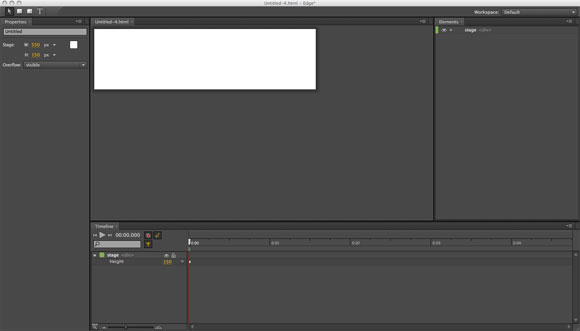
Now, let us start by installing and opening Adobe Edge. From the File menu choose New File. From the Properties panel on the left, set the document width to 550 px and height to 150 px.
Step2
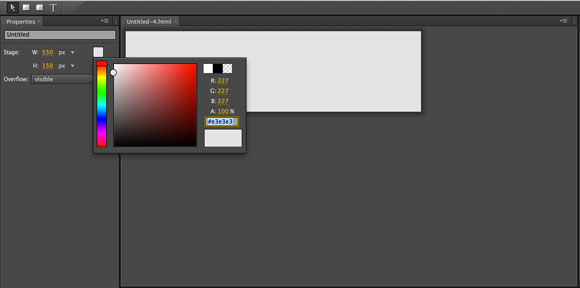
Open the background color picker and set the background to light gray. Also, set the Overflow to Hidden to hide the objects that are off-screen.
Step3
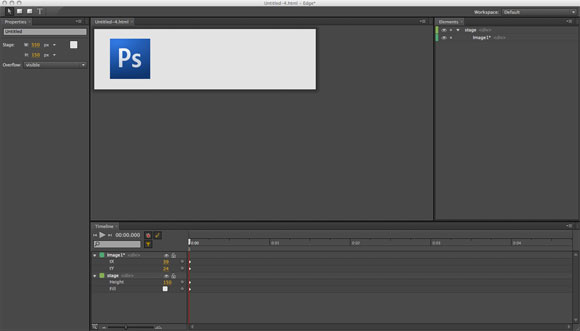
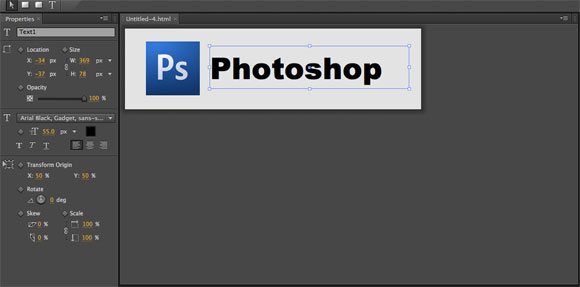
Choose Import from the File menu and open the PS.JPG, a Photoshop icon with 100px x 100px, and place it in the banner as seen below.
Step4
Use the Text tool to write “Photoshop” like below. Increase the dimensions of the text area by dragging the edges and change the font size to 55px.
Step5
Now, we will animate the Photoshop icon and the text through the timeline. The timeline in Adobe Edge is similar to other Adobe applications, such as After Effects. When you create an object on the stage, you will find that a separate layer is created for it in the timeline.
Each layer has sub-layers that include the properties of each layer. In order to create the animation, we will need to create keyframes that represent the change in layer content properties, such as size and position.
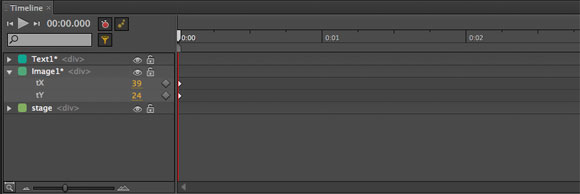
In this example, we will click the arrow next to the Photoshop icon image to extend the sub-layers. Notice that there are only two sub-layers to control the X and Y positions for the image.
Step6
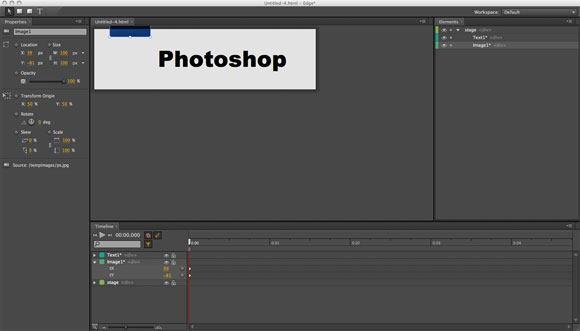
With the timeline indicator positioned at the beginning of the timeline, move the Photoshop icon image to the top of the stage as below.
Step7
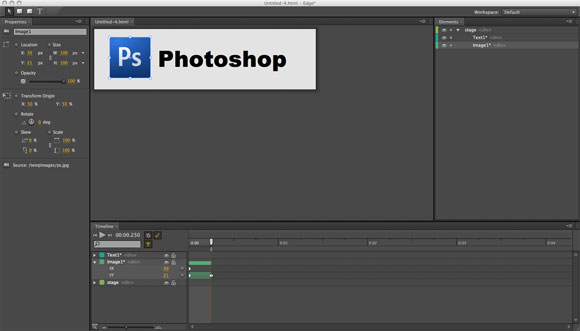
Move the timeline indicator by a few frames and drag the Photoshop icon image to its final position in the stage as below. Notice that that area between the two keyframes has changed in color to indicate that there is an animation for the layer content.
Step8
Move the timeline indicator back to the first frame and select the text on the stage. From the Properties panel, set the Opacity value to zero.
Notice that a new properties panel is created to represent the Opacity value in the timeline.
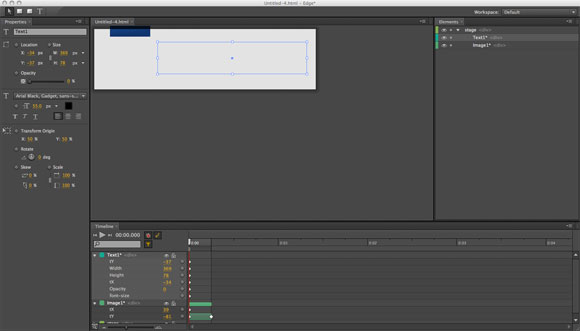
Step9
Move the timeline indicator to the end of the Photoshop icon animation. Set the Opacity value to 100%
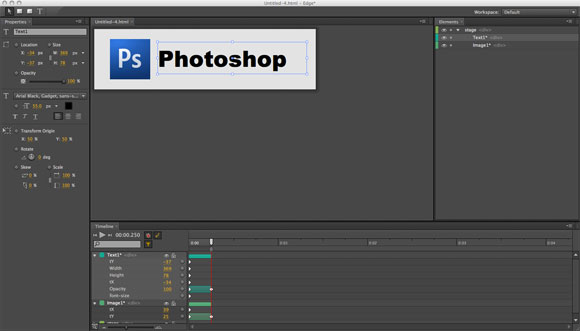
Step10
In the text animation layer, click the green area that represents the animation and drag it to the right, as in the figure below, to make a delay between the appearing of the Photoshop icon and the text.
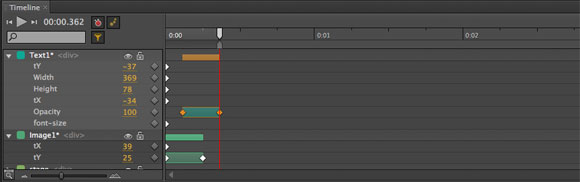
Step11
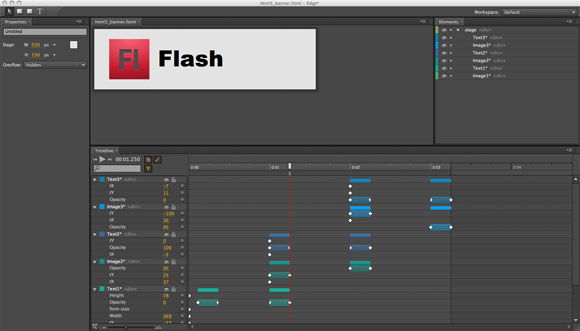
Now, we will add the second icon and text to the animation. Move the timeline indicator on the timeline as in the figure below. Then, from the File menu choose Import and navigate to FL.JPG. Place it on top of the Photoshop icon as below:
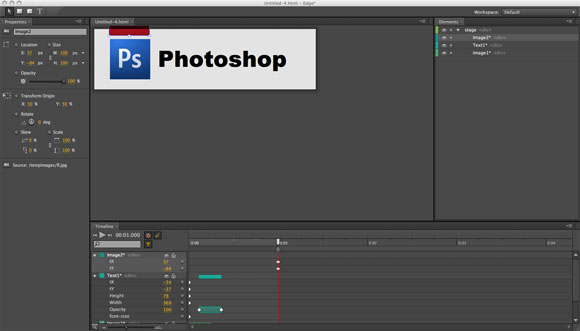
Step12
With the timeline indicator in the same position, select the Photoshop icon image and set its Opacity to 95%, you will notice that a sub-layer for the Opacity value is added to the Photoshop icon layer in the timeline.
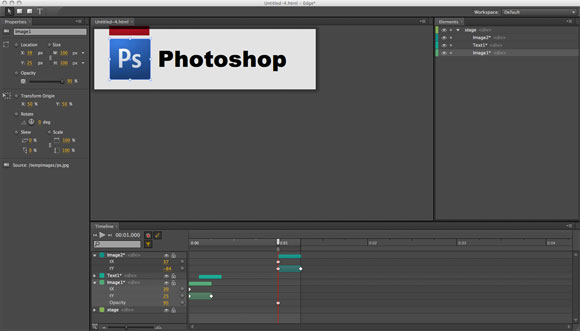
Step13
Move the timeline indicator and from the stage, add the Flash icon image above the Photoshop icon. Select the Photoshop icon and set its opacity to 0%.
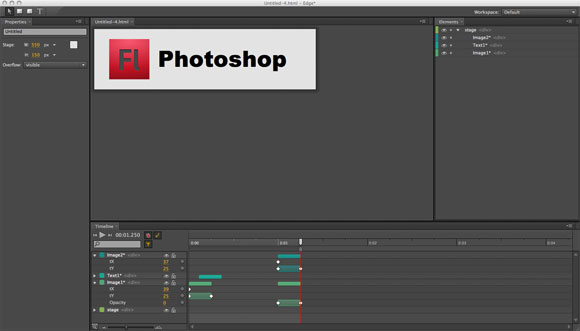
Next, we will use the same technique to remove the text “Photoshop” and replace it with the text “Flash”, as we will see below:
Step14
Move the timeline indicator to the beginning of the Flash icon animation and select the text “Photoshop”. In the Opacity property sub-layer, click the small dot on the right to create a keyframe.
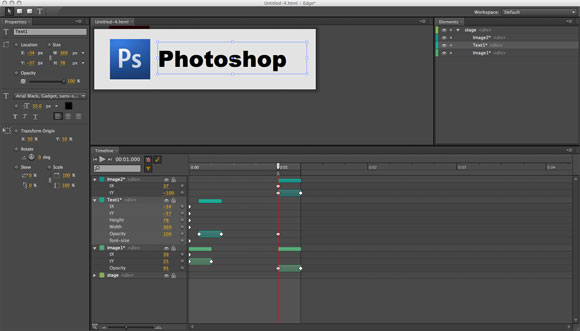
Step15
With the timeline indicator in the same position, use the Text tool to write the text, “Flash”. And set its opacity to 0%. Position it above the text “Photoshop” text to replace it.
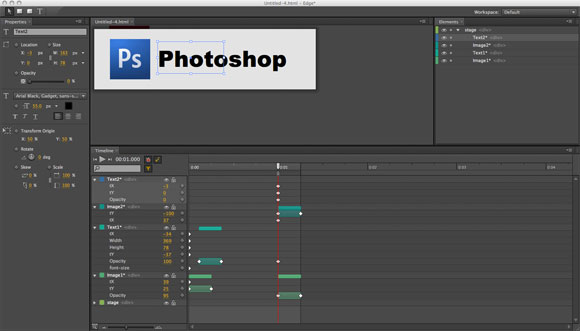
Step 16
Move the timeline indicator where the animation of the Flash icon ends. Set the Opacity for the Photoshop text to 0% and the Flash text to 100%
Step17
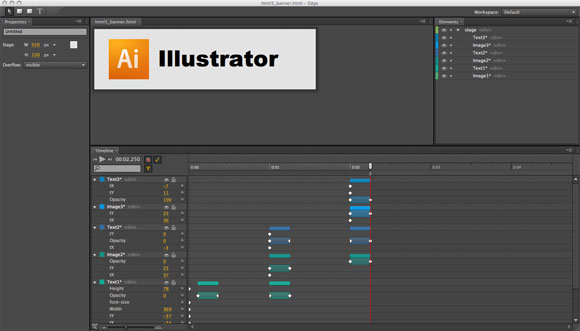
Repeat the steps above with the AI.JPG Illustrator icon by hiding the Flash icon and the text and replace it with the Illustrator icon and text as above.
Step18
Save the file and you can preview it in the browser from the File > Preview in Browser. You can preview the animation by clicking the link here.
In this tutorial, we saw how to create a simple HTML5 animation using Adobe Edge. Although the tool is simple, it can be helpful for creating animation, especially because in HTML5 it would be more difficult to create animation using manual coding.
You can use the same concept to create your own animation and HTML5 banners. You can download the source file for this HTML5 animation below.
[amember_protect guests_only] If you are already a Premium Member then just sign in and you can download source file for this tutorial.Not a member? Sign up today or read more about our Premium Member area.

[/amember_protect]
[amember_protect user_action=’hide’ visitor_action=’hide’]
Download the email vector icon for this tutorial by clicking the button below:





sounds interesting..but i really need to download Adobe Edge hmmmm
follow the link in the beginning of the article to download Adobe Edge from Adobe Labs.
Hello, nice tutorial on the animated banner. Do you know how to add simple control buttons that would pause and play the animation?
Sadly, the current version of Adobe Edge does not support adding actions or code. I think it is still in the early stages and this may be added later.
Nice post Rafiq, it certainly is worth looking after. Seems like the preview I’m working in now only has about 20 days left, so the release will be welcomed.
Im wondering what price tag we will see
Nice tutorial.
My problem is that I don’t know how to make it to run in a loop. After spending some hours trying to achieve that, I gave up…Any help will be appreciate. Today I found this banner: http://www.flashxml.net/banner-rotator.html that looks pretty good and meets my requirements. It’s Flash, this could be an issue for Apple devices but if I can’t find a solution, certainly I will use it on my website.
I was able to create a HTML5 banner, the question is how would I put it in my HTML code along with other banners, this is set a a list of ads on the right side of a website (joomla based)
Thanks
Interestingly enough on Firefox 14.0.1 – The animation does not seem to play properly – the logo images don’t slide down like they do in Firefox 13 or Chrome or IE 9. Hmmm
Yup, the banner does not work in Firefox – this makes me leery of investing time in any tool that does not generate code that work across all modern browsers.
All current versions play the animation correctly. Are you viewing it in an older browser?
To my older question about looping:
Just click on the Timeline actions button in top left corner of timeline panel and choose Play. Just add a 0 to the play position.
// play the timeline from the current position
this.play(0);
Source: http://www.heathrowe.com/adobe-edge-apply-complete-action-to-loop-an-animation/
Can I create banner that expands with this? I was going to use flash but then advised this better as it works on ipads – any opinions?
Hi Lydia,
thank you for your comment. If you are targeting iPad, then I would recommend HTML5 banner because Flash will not work there. And you can use this example to help you creating your banner.
if you need code panel to make some action . download latest adobe edge animate 7
Another question is, how do you bring the created HTML Edge file into your web design program (i.e. Dreamweaver CS6)? Adobe offers a way to do this, but expect to pay a good $74 a month for a Cloud membership to access that feature. Dreamweaver should contain this extension, considering what we pay for it.
I will report this feature request to Adobe and I hope they consider it. You can pay less for the creative cloud if you paid for a year, which will cost you around $50/month
Thanks Rafiq! I found out Adobe also gives you a membership discount if you actually own an Adobe product, which I do. It is $29 a month for the first year, with a year commitment (paid monthly). What was not apparent was that as a member, you have access to ALL of the Adobe programs. I have registered and it is really great. Indeed, as a member, Dreamweaver has a menu that lets you import your Edger Animate work in two quick steps. I tried it and it was amazing.
And quick word in case someone does register with Creative Cloud. If you Do have an Adobe program installed on your computer and registered with Adobe, it will not let you re-install it with the added Cloud features. You have to uninstall it, restart your computer and then download it again directly from, Cloud. Took me 45 minutes on the phone with Adobe to get to that conclusion. Hope it helps.
Thank you for sharing these useful information. I am sure it will be helpful for many users.
Furthermore once we started again do you really believe Ultimate Demon would prove in order to
be the effective SEO package the product is truly these days