
Making a Guessing Game in Flash CS4
24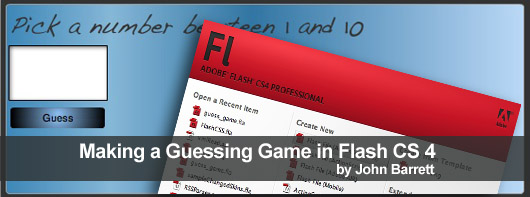
This tutorial will explain how to create a guess game in Flash CS 4 with ActionScript 3.0. This tutorial can be applied using any version of Flash that supports CS4, CS5 and later versions.
You can preview the final result of this tutorial by clicking the link below and download the source of this tutorial at the end of this tutorial:
Step1
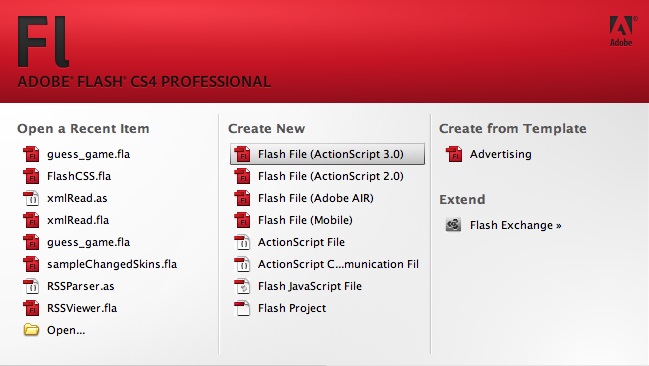
Open Flash CS 4, and pick an ActionScript 3.0 file.
Step2
Create the document size of 550 px (width) 210px (height).
Step3
Next create 3 layers called background, content, and actions.
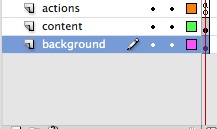
Let us first make the background (make sure you are on the background layer), you will notice that I am currently on this layer:
Make the background for the flash movie #333333 this will turn the stage to a grey, which we will be using for the border. Next using the rounded rectangle tool and create a rectangle centered on the stage with 4 for the rounding value. Next pick a gradient fill of blue (or any color that you want). Next convert this background graphic to a movie clip (modify>convert to symbol, or right click and chose convert to simple), and call it background.
Step4
Next we will work on the design features of the guessing game (make sure you are on the content layer):
Now make sure you are on the content layer, using the text tool, pick an area on the stage (I picked the upper left section, but maybe you want the application to be centered) and type “Guess a Number between 1 and 10”.
I am using a font called Handwriting – Dakota (In the source files) And I am using a black fill. The font, and color makes no difference, it really just depend what you like.
Step5
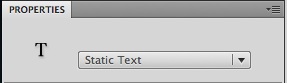
Pick Static text in the dialog in flash. This test is static text it is just a title, and therefore it does not perform any actions.
Step6
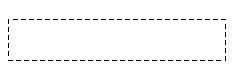
Now using the text tool create a text field on the stage under the main heading that you just created.
Just move the cursor on the stage and drag an area, which will look like a box.
Step7
This is where the user will type in the number that they guess. Make sure that this text filed, is Input text, and has an instance name of “guess_txt”
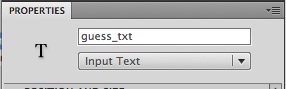
The instance name is how we can communicate with actionscript (which will get to in a minute). Basically, you will add the instancename.{flash_function}
Step8
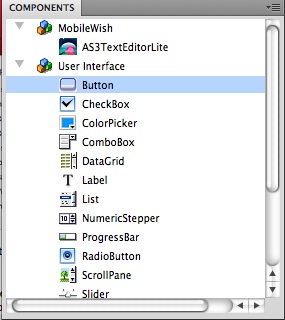
Now we will add the button, go to components panel and drag a button onto the stage under the input text box you just made.
Step9
Now position the button to line up with ht e two text fields on the stage.
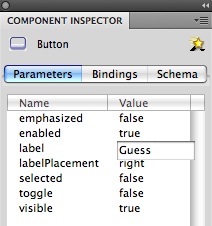
We will now use the components inspector, this can be found in Windows>Component Inspector.
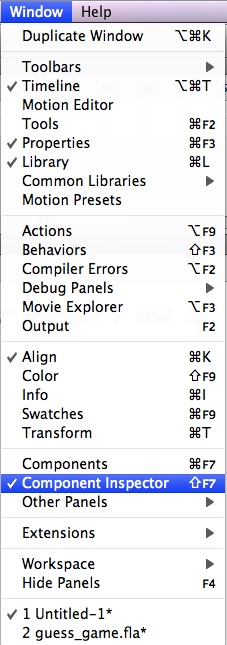
We will be using this to change the name on the button, as it says label by default. We can also do this with actionscript, but we will save that for a later tutorial.
Step10
Change the Label to Guess
Step11
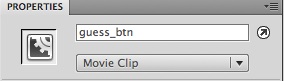
Give the button an instance name of guess_btn. By the way when you end your button in btn you can get extra hints in flash. Note: if you double click on the button you can modify the colors of the button stages. I used gradient fills.
Finally our last text filed for the message to the user, this is useful as you want to commutate to the user, either a error message, or to let them know they picked the right number.
Step12
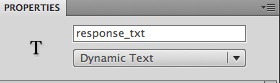
Using the text tool again, create a large text filed under the button, and make sure it is set to dynamic text, and give it an instance name of response_text
The design of the application is complete, and now we are ready to add the actionscript to make the game interactive!
Finally we will work on the actions, make sure you are on the actions layer:
Step13
Click on the actions layer, and highlight the first keyframe, right click and pick actions, this will open the actions panel so we can start coding.
Now we need a variable, in actionscript this is done by assigning a “var” which we will call correctNum, and then we will use a random number function, and then multiple that result by 10. This way will get a random number between 1 and 10, which is what we want.
var correctNum = Math.floor(Math.random()*10);
Check the flash documentation to learn more about math functions in flash
Step14
Now we will write the code for making the button react to the user. This is done with the addEventListener and since we want an action when the button is clicked we will use this function in this event.
Also, we need to use the instance name of the button with the “.” Dot notation. And finally there will be a function to tell flash what will happen when the button is clicked.
guess_btn.addEventListener(MouseEvent.CLICK, onGuessClick);
Now for the onGuessClick which is an event, which goes in the brackets. Now within this function we want to assign a variable for the guess and do some error checking too.
function onGuessClick(event) {
var guess = Number(guess_txt.text);
//this variable guess is a number, and you want to pass this into the text field, and using the instance name with a .text which allows you to display this text in this filed when the swf is compiled.
if (guess < 1 || guess > 10) {
response_txt.text = “I said between 1 and 10, dude!”;
// this checks to see if the number picked is between 1 and 10. I think that the less tan or greater than sign you are familiar with. The || means OR so this is saying less than 1 OR greater than 10.
} else if (guess == correctNum) {
response_txt.text = “You got it - It was ” + correctNum + “!”;
//this is saying that the user piked the right
} else if (guess < correctNum) {
response_txt.text = guess + ” is too low!”;
//if the number is wrong tell the user it was too low.
} else if (guess > correctNum) {
response_txt.text = guess + ” is too high!”;
//if the number is wrong tell the user it was too high.
}
}
Now the complete code
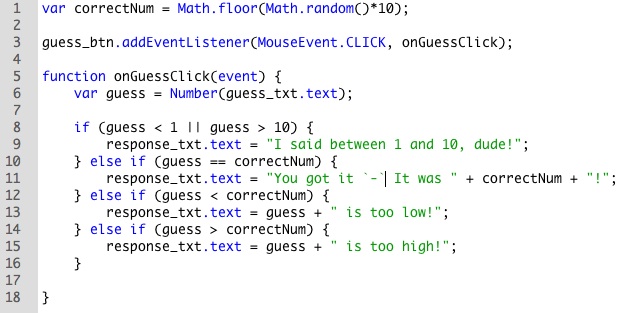
If you want to change the game, just change the “10” to you number. Let’s say you wanted 25, then change these two lines to:
var correctNum = Math.floor(Math.random()*25);
and
if (guess < 1 || guess > 25) {
response_txt.text = “I said between 1 and 25, dude!”;
You can download the complete code, along with the font I picked in case you don’t have it.
This is part one of this tutorial, the next time I will explain how to improve on this, as it does not check to see if the user picks a letter, such as cat, and it does not check to see if the user picks nothing.
I also added some design features to my swf. Basically just a movie clip for the background with a gradient fill and a drop shadow.
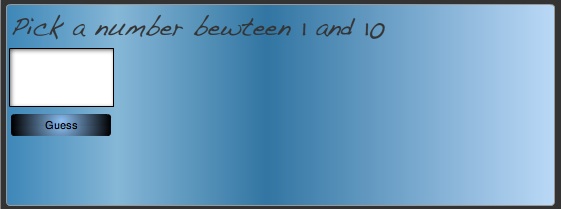
If you have any comments or questions, please leave a comment!
Next time I will explain ho to make a Quiz Application. Happy Flashing!
[amember_protect guests_only]If you are already a Premium Member then just sign in and you can download source file for this tutorial.
Not a member? Sign up today or read more about our Premium Member area.

[/amember_protect]
[amember_protect user_action=’hide’ visitor_action=’hide’]
Download the source for this tutorial by clicking the button below:



Wow! I’m sure, everybody who read this tutorial in making a guessing game in Flash will easily follow the instructions and could have their own guessing game. Thanks Johnny for sharing it with me:)
Hi Norie,
I am glad to see that you liked the tutorial, and if you have any questions, please let me know
-happy flashing,
Johnny
-.-= John Barrett´s last blog ..Conditional Statements =-.
thanks !! very helpful post!
Hey John, nice tutorial for beginners. I noticed that you used: Math.floor() in the variable correctNum. You could have easily used Math.round instead to get the same results. You should show both options and describe what each one is used for. It’s a nice tutorial and I’m sure beginners would love it.
Thanks, Mokey
Hi Best HDTV,
Thank you! I am happy to know that you found the tutorial useful.
-Thanks Mokey for your comments.
Maybe I show this in a future tutorial I will show the difference between the two examples. As you know there is more than one way to come to a conclusion
-Thanks again for your comment
Johnny
how would you limit the numer of guesses ?
Thanks a lot for the great tutorial for beginners! I’ve never had any flash and action script practice (only Visual basic), but after reading this tutorial I was able to move on on my own. Thanks a lot!
@Paul you can create a var, with a if statement, and then check to see if the guesses have expired? Does this make sense or would you like to see an example?
@Gyrga thank you for your kinds words, and I am very happy that you found the tutorial useful
-This makes me happy to hear that after reading the tutorial you were able to learn some actionscript and apply it to your flash projects, this is what the tutorials are for-if there is a tutorial that you would like to see, let me know!Johnny
i would like a tutorial on how to limit guesses / trys , for the guessing game , or a limit in incorrect log in attempt
Hello 🙂
I’ve been looking all over the internet for tutorials that can help me with a game I would like to make. This tutorial seems the closest to what I am looking for but at the same time, I’m not entirely sure if it is the right concept. The links that you have there aren’t working at all so I have no way of finding it out 🙁
Is it possible to talk to you for help? Please T____T
Hi Patricia,
So sorry to get back to you late!
What type of game are your thinking about making?
I just check ed the download, which link was not working?
feel free to contact me with any questions
-.-= johnnyb´s last blog ..ColdFusion & XML =-.
Hi Johnny,
I’m new to Flash/ActionScript 3.0.
I had trouble with this tutorial. The input textbox and button are flashing and won’t let me enter in a value. What seems to be the problem here?
Thanks,
Ursula
Thank you for replying!!
The game that I had in mind was a CSI game. Even something as simple as just an interactive picture would have been fine but no luck in finding tutorials for it 😛 Anyways, it looks like it might not even happen anymore, since the forum I am planning it for only allows bbcode.
The links that were not working for me was the “see this game in action.”
Yes, the “see this game in action” link did not work for me either. Cool little game though.
Hey, if I did some video tutorials using your instructions could you and would you want to put them on your site? Not looking for payment, just looking for a way to help others as you have helped me.
jhonnyb~
1) I downloaded the code and it had a font not found on my machine. Do you know where I could get that one for free (not sure what it is, though).
2) What would be the code to allow the game to start over, like a “New Game” button?
3) Any way to limit guesses?
4) Strange thing with the Guessing Game – I played one where ALL numbers between 1 and 10 were too high! Got it on video 🙂
5) Is there a way to map the “Guess” button to the Enter key so you don’t have to use the mouse to click it?
6) Awesome site, I’ll come back often!
Climbmaniac
Nevermind about the font question, after looking for allof 5 seconds I found it in the download’s “Fonts” folder. Next time I’ll look first, ask questions later. 😉
Tried to put the font in my fonts folder and Widnows said,
“Unable to install font. File “…\Handwriting – Dakota” is either invalid or damamged.
Do you have a solution, perchance?
Climbmaniac
Hi John
Please I need your help on making a game on flash cs5. I need to make number guessing game. Please if you have a video tutorial as soon as possible. I really want your help.
Thank
Jack
cool tutorial
I have the same question like Ursula, this doesn’t work.
I followed the tutorial but it still doesn’t work :/
when i click on the button it doesn’t do anything, im not sure if this is the buttons fault or the codes
i dont like this
what don’ t you like?