
Create Your First Android AIR App in Flash
11
In this tutorial, we will learn how to create AIR Application for Android mobile devices using Flash CS5.5. To complete this Flash tutorials, you will need to have Flash CS5.5, Android SDK and Android 2.3.3 platform tools as will see later.
Related posts:
- How to Create a Snake Game in Flash Using AS3
- Creating Reflection in Flash Using AS3
- Bitmap Data Manipulation in Flash ActionScript 3
- Creating and Controlling Flash Animation with XML
- How to Build a XML Driven Quiz Application in Flash
- Approach to Understand XML and Flash Workflow
The first step is to download the Android SDK from http://developer.android.com/sdk/index.html.Pick your platform (mine is Mac.) Place this SDK someplace on your machine. I like to keep everything in my libs folder, so I would have /Users/username/libs/android-sdk-mac_x86.
Step1
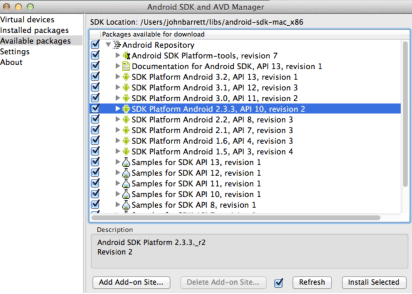
Now that you have the SDK in a place you like, go to the tools folder and open “Android”, then go to “available packages” and download Android 2.3.3.
Step2
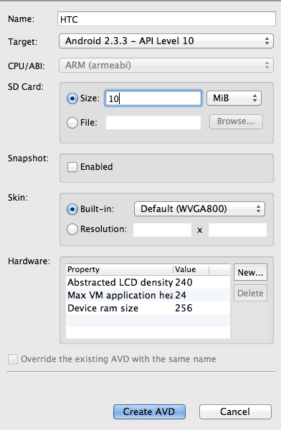
The next step is creating a “virtual device”. Click “new” on the right hand side, and you will have to make something that looks like this, then click “create AVD”.
Step4
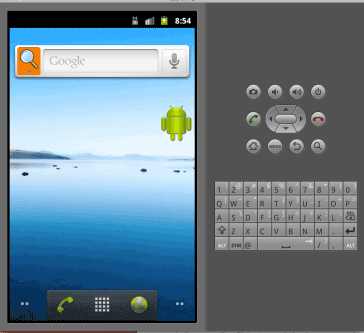
To start the emulator, just click the start button. It should look like this:
Step5
However, for AIR, we need one more step. Get the file Runtime.apk from flash CS 5.5.

Copy this file into the platform-tools and run the following command
./adb -e install -r Runtime.apk (make sure you do this while the emulator is running)
This will install AIR for use in the emulator. I must warn you the emulator is VERY SLOW.

Step6
Now that the Android emulator is set up, make a flash file using AIR for Android.
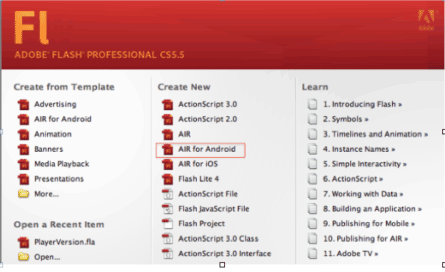
Step7
Now onto the Flash part. I just made a simple Hello World application, where it has a text field that says “Hello from Android” and an image of the Android icon.

Step8
Just like with any AIR application, you will need to set up the descriptor file in the tools for AIR for Android. The general one is basic, no changes needed. In the Developer section you will need a certificate. If you don’t have one, create one, it’s very easy. Just choose “create certificate” in your settings. Finally, in the permissions section, you need to have “Internet” checked.
Step9
To test the file on the emulator, go to Test Movie–> on device via usb. You could also just publish the file when you are setting up the certificate, just press publish. When you publish you are creating an .apk file which you can transfer to your phone.
Step10
Then on the Android Emulator you will see you flash application.
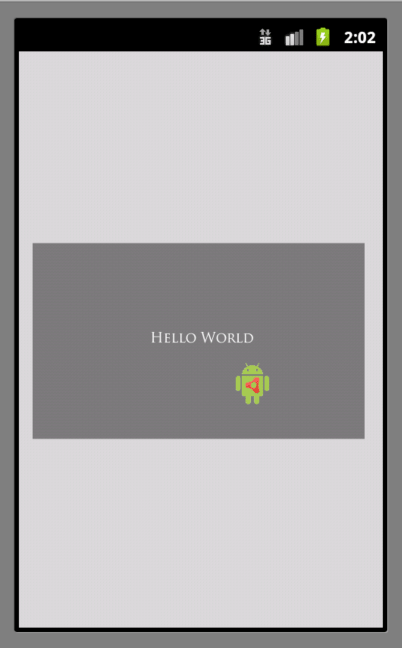
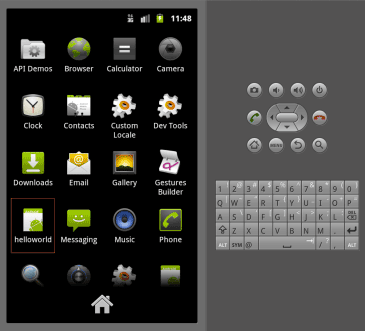
Also, you will see this on the phone. That is it! Happy Flashing 🙂
[amember_protect guests_only]If you are already a Premium Member then just sign in and you can download source file for this tutorial.
Not a member? Sign up today or read more about our Premium Member area.

[/amember_protect]
[amember_protect user_action=’hide’ visitor_action=’hide’]
Download the source for this tutorial by clicking the button below:




Simple and easy to use tutorial. Thanks for share.
I am having a problem installing the runtime.apk to the emulator. Can you provide clearer direction on how to do so? Thank you
thanks..
i can not install runtimes.apk
this is the error message :
‘-‘ is not recognized as an internal or external command, operable program or batch files.
please help me..
I cannot install the runtime because windows cannot find ./adb
I can’t seem to find the ’emulator.apk’ file from my adobe folders. What step do I miss?
Trying it out.. Which language to select to start coding? AS3 or Flashlite 4.0?
Flash AS3
Sir can you please send me an adobe flash cs5 extension air for android??
pls..i would be glad if you could sir..
heres my email..
I believe that you can find in this link:
http://www.adobe.com/products/flash.html
Truly, it’s a extraordinary steps for Android flash app and would finer guidance to all.
why download that specific version? what if i download a more recent one?