
Creating GIF images without white borders problem in Photoshop
16GIF images are a good choice in low size and transparency support for most web designers. But the big problem that most designers face is the white border that shows up around your transparent GIF image while saving them from Photoshop or other software.
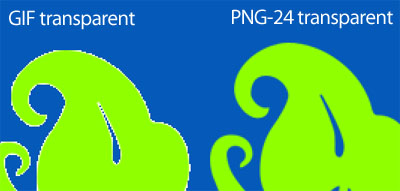
Figure01, notice the edges in GIF format transparent images and PNG-24 format
Actually, this white border happens when GIF images does not calculate the transparency very well as this format compress the colors to the limit or may be distorting the colors if you try to decrease the size a little bit more using the GIF setting.
In this quick tutorial, we will show how to avoid these white borders with using the Matting feature in Photoshop. Actually, the matting feature allows you to only replace this white border with your background color so it looks better and the image consists well with the background.
As we see in figure01, the floral motive on the left is in GIF format, and it shows not clean edges with white background while the one on the right (PNG-24 format) has a better edges.
The following steps shows how to save your object in GIF format without this undesired edges using the Matte option in the Save for Web & Devices in Adobe Photoshop CS3:
1-Open the transparent image you want to save as GIF in Photoshop CS3.
2-From File menu choose Save for Web & Devices.
3-From the left panel of the dialog box, choose the GIF format from the drop-down menu.
4-Make sure that the Transparency check box is checked.
5-The Matte drop down-menu gives you ability to choose the color that GIF will treat the edges with. For example, you can choose the Foreground to select the foreground color, Background to choose the background color and you can choose a custom color from the Other option (figure02).
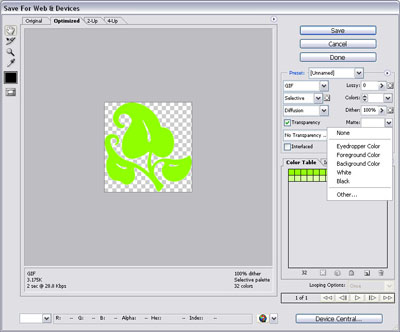
Figure02, Matte options in Adobe Photoshop CS3
6-Choose the color that is the same color that you will use your GIF image with. For example, if you are using HTML color code, you can add the same color the will be shown behind the image.
Some people just go to use PNG instead of GIF, but in some cases like banners, some CMS systems, it is required to have GIF images for transparent images.



Wow!! This is a really nice blog mate. Do you accept donations?
But what You should to do, when background have a gradient?
ex.: Your lime flower on black-white gradient? 🙂 Sometimes You can use only PNG, right?
I mainly like to use PNG instead of GIF. But in non-tranceprancy images and backgrounds I prefer using JPG.
Really nice tutorial, i also mainly work with PNG instead of GIF, however occasionally i may use GIF. Anyway this tutorial is very good tutorial, and you have a nice site as well.
Love your post, thanks for the information! I’m a shop keeper so I have to sneak in internet time at work. I dont really ever add comments but got on this page by clicking a wrong link. Keep posting more like this!, I favorited your site! 8)
animation in ps cs4 are in gif i often have this problem in animation or in transparancy , i found a way to make better , i just resize to 150 pixels then i can work more easy the picture for gif animated transparancy ! but i go check what i can do with your tutorial ! me like you i use png only for transparancy and jpeg for the rest
Thanks alot, actually we always face troubles when working with GIF because its extreme color compression, so I always prefer to work with PNG. But keep in mind that some old browsers before IE6 do not view the PNG properly.
Thanks. very helpful article ! Great story !
Very helpful. I continuously have to design web pages and emails with elements that should be PNGs but have to be GIFs to support inferior browsers, so creating “clean” transparent GIFs is always a challenge.
Thanks. very helpful article…
nice! you saved me a headache! thank you!
Thanks. It’s really helpful.
But I still got problem with animated gif. I don’t know why there are too many dot outside the picture while I can’t see on photoshop T_T
Thanks again.
It is usually because of the quality of the GIF. You can increase the number of colors while saving the GIF image. But this will not solve the whole problem.
An enormous “Thank You” for making my life easier.
Thanks Rafiq. I was encountering this problem with an animated gif but was able to resolve it with your solution since it was only one color I needed to replace.
nice job. thanks for posting