
Quick Tip: How to Create a Seamless Pattern in Photoshop
2
What is a seamless pattern? It is a texture that can be tiled without any obvious seam. Now you can create your own seamless patterns with Adobe Photoshop. Just few simple DIY steps and you can convert any pattern in seamless pattern.
Related posts:
- Quick Tip: How to Create a Seamless Pattern in Photoshop
- How to Create Islamic Style Poster in Photoshop
- How to Customize Skyscraper Background in Photoshop
- How to Create a Photo Manipulation Poster in Photoshop
- Amazing Photo Manipulation Tutorials
- How to Create a Comic-Book Style Image of Yourself
- How to Create HDR Photos in Photoshop CS5
 Water.png Water.png |
 Water-modified.png Water-modified.png |
See how they look as tiled pattern. Original texture has obvious seams.
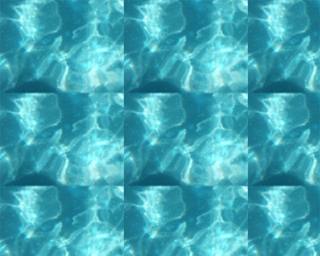 Water.png as a tiled pattern Water.png as a tiled pattern |
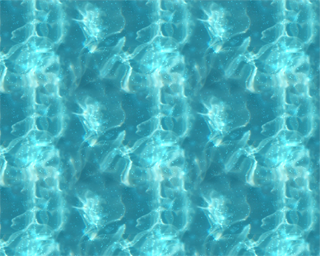
Water-modified.png as a tiled pattern
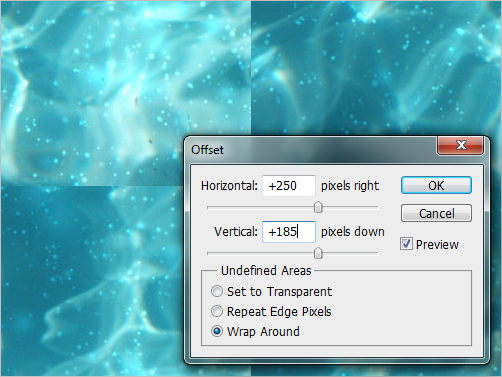
Step 1. Open source pattern and display its border.
Open source pattern water.png. Then go to “Filter > Other > Offset” menu, set parameters ( “x” offset = + 250 and “y” offset = + 185) and click “Ok”.
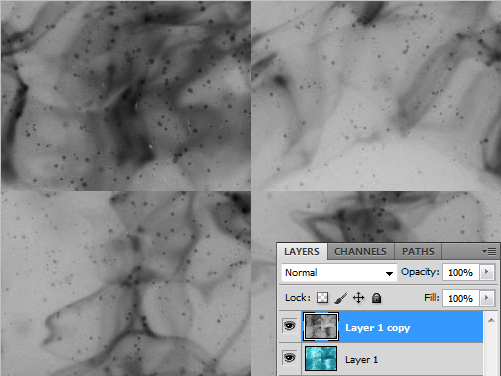
Step 2. Create a source layer duplicate.
Now choose the original layer and do the following:
- Duplicate layer (Ctrl + J);
- Inverse (Ctrl + I);
- Set Black and White color (Ctrl + Shift + U).
Step 3. Image and tones smoothing
Choose duplicate layer and do the following:
- Apply auto tone (Ctrl + Shift + L).
- Apply a Gausian blur (Filter > Blur > Gausian blur). Set 35 pixels and click “Ok”.
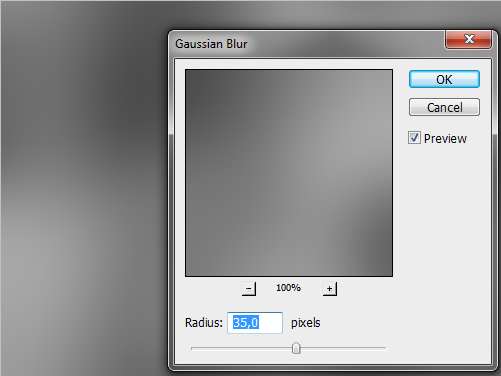
Step 4. Image adjustment.
Select a layer copy and set blending mode on “Soft light” (Alt + Shift + F). Then merge layers (Ctrl + E).
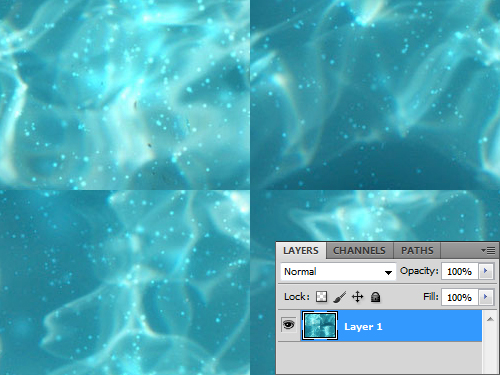
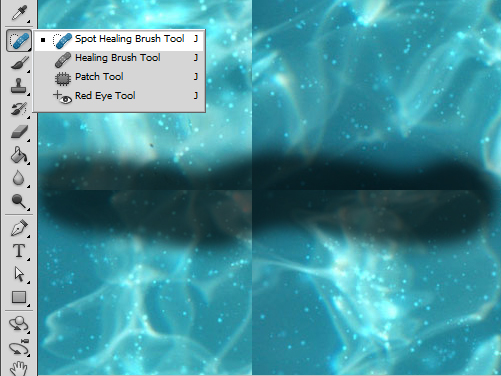
Step 5. Desaturating the borders.
Select “Spot Healing Brush Tool” (J). Then make the “Brush tool” radius more wide and make horizontal and vertical border brushing.
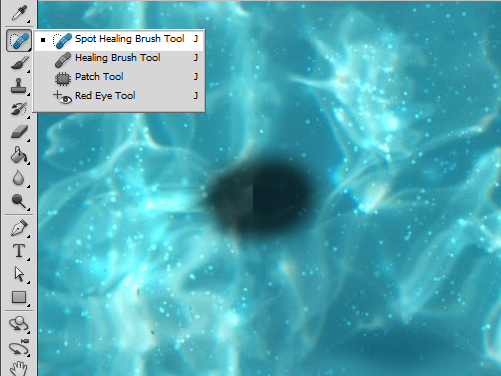
Step 6. Correcting.
Shift the illustration (Filter > Other > Offset) one more time. After that, correct the image borders that left with the help of “Spot Healing Brush Tool” (J).
Step 7. Saving the prepared image as a new pattern.
Go to Edit > Define Pattern. Then enter the name of the pattern and click “Ok”.
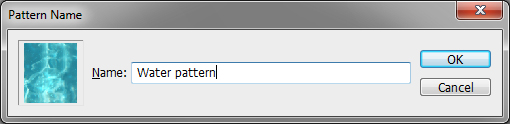
Final image. Prepared pattern usage.
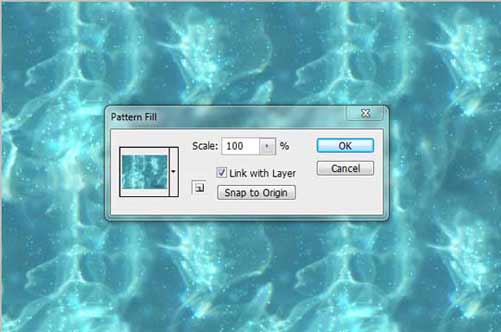
- Create a new big sized (2000×2000) document (Ctrl + N).
- Choose Fill > Pattern in the “Layers” menu. Select “Water pattern” and click “OK”.




Fantastic! What a great tutorial ad well timed for me. T.Y.!
Wow. I didn’t knew that it was so simple.