
How to Create Glossy Icons in Illustrator
7.jpg)
This tutorial shows how to create vector glossy icons in Adobe Illustrator, you can use these icons for different uses on your site, this tutorial takes an example of creating RSS glossy icon that you can apply the same concept in other icons.
Ever wondered how they make all these RSS logos you see on most sites today?
Here’s how to go about it…
1. Open up Illustrator and create a new document. Click and hold the the mouse over the Rectangle Tool and select the Rounded Rectangle Tool below underneath. Draw your shape on the artboard while holding down Shift to create a square. You can use the arrow keys to change the roundness of the corners to your preference.
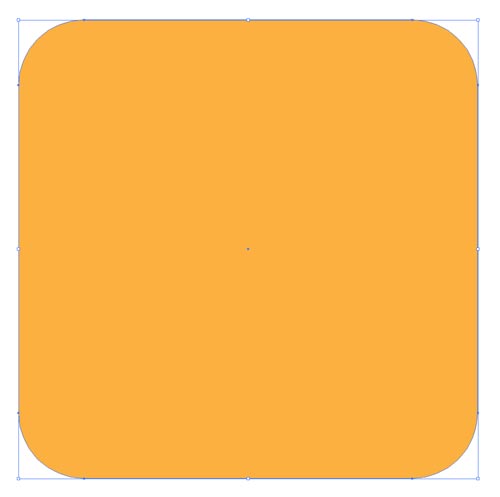
2. Head up to the top and clear the stroke of any presets, then open up the Gradient panel. Add an orange fill that goes from dark to light vertically on the shape.
.jpg)
3. Select the shape, go to Object > Path > Offset Path. Enter -1mm in the options. Get hold of the corner of the object and drag it through 180 degrees, this will make the two gradients flow in opposite directions.
.jpg)
4. Select the Circle tool and draw a circle anywhere on the artboard. Get rid of any fill preset and set stroke to a thick 16pt black one.
.jpg)
5. Select the white arrow (Direct selection tool), click only the bottom left points of the circle and delete them to create a quarter of a circle.
.jpg)
6. Copy (Ctrl+C) the quarter circle and paste on top (Ctrl+F). Scale it down whilst holding the shift key to keep everything to scale.
.jpg)
7. Adjust the strokes to match the original 16pt
8. Now draw a small circle in alignment with the quarters to create the well known RSS shape.
.jpg)
9. The two quarter circles are still stroked paths. lets convert them to shapes by going to Object > Expand and selecting the convert stroke option.
10. Select the 3 objects and add a grayish -whitey gradient running vertically. Also add a thin 1pt light grey stroke to finish off the RSS object.
.jpg)
11. Now group these objects together by selecting them and pressing Ctrl+G.
12. Select the inner rectangle from the orange box. Copy (CTRL+C) and paste above (CTRL+F). Fill it with white.
13. Draw a wavy shape over the entire graphic, the shape depends on what you want. It could be a plain oval or an up and down curve, whatever suits you. Move it so it covers some of the white rectangle, again wherever suits you. Now select both the white rectangle and the new shape. Click the Intersect Shape option in the Pathfinder palette.
14. Now reduce the opacity of this new shape to around 20% to give it a sleek glassy shine.
You should end up with something similar to mine:
.jpg)
Remember this isn’t just for RSS, the techniques here can be used in any modern logo.
I hope you like my first tutorial, if there is anything you need help with or would just like to comment on the tutorial itself please comment below.




great tutorial
thank you
.-= designfollow´s last blog ..The Big Showcase Of Online T-Shirt Stores =-.
Great tutorial! We added it to our free vector site 😀
It would be cool if you did an extra few steps and showed how to add a reflection or drop shadow below the icon like you see on some.
.-= Liz´s last blog ..How to Create Glossy Icons in Illustrator =-.
Icons are such fascinating pieces of art!
Great tutorial. I love the way it all comes alive.
Thanks for your lovely comments 🙂
I will bear the critiques in mind when I write my next one which will be soon I hope.
If you have any requests about what you want to see me write about feel free to get in touch with me through the various ways…
Will probably do a web design tutorial. I’m wanting to split it into 3 parts, first concept blocking the layout in photoshop, then moving onto the design in photoshop and finally marking it up to xhtml / css standards in dreamweaver.
Anyways wont let anything else out or no point you reading the tut xD
Cheers!!
VB
[…] How to Create Glossy Icons in Illustrator How to Create Glossy Icons in Illustrator […]
nice… and we need total tutorial… what you have done….. kindly update how to apply the color or gradient.
thanks
V Prabhu